How to extract data from a scanned PDF to Excel
A scanned PDF is a picture of a page, not text — so the usual tricks (select the text, copy it, or point Power Query at it) return nothing usable. Getting a scan into Excel needs OCR or AI vision. Here is what actually works, and the step most guides skip: keeping the numbers accurate.
Why a scanned PDF is different
There are two kinds of PDF. A digital PDF holds real, selectable text — you can highlight it, copy it, or feed it to Excel's Power Query. A scanned PDF (or a phone photo saved as PDF) is just an image of the page: there is no text underneath, so selecting and copying gets you nothing, and template or Power Query tools have nothing to read. Before anything can reach Excel, the image has to be turned into text — that step is OCR (optical character recognition), and increasingly AI vision that reads the layout directly.
The options that actually work
Online or built-in OCR (Adobe, Google Docs, free web OCR) turns the image into text. It is fine for a paragraph, but on a table it usually hands back a wall of text with the columns collapsed — you still re-tabulate it by hand. ChatGPT or AI vision can read a scanned page and output a table, but one file at a time, with no check on the numbers, and you are uploading financial documents to a third party. Dedicated AI extraction reads any layout — scanned or digital — in batch and returns structured columns rather than raw text, then checks them. Which one fits depends on volume and whether the numbers matter.
The hard part isn't reading — it's the table
Reading the characters is the easy part. The real difficulty with a scan is reconstructing the table: which numbers belong in which column, where a row starts and ends, how a total relates to its line items. Plain OCR gives you the words but loses the structure, so you end up rebuilding the grid in Excel by hand. What you actually want is structured fields — vendor, date, each line item, subtotal, tax and total as separate values — so the result drops into a spreadsheet already in shape.
The accuracy trap: validation
Scans make misreads more likely — a faint 8 reads as a 3, a 7 as a 1. If nothing checks the result, that misread flows straight into your spreadsheet and, if it is accounting data, into your books. Say a total of 3,357.60 is read as 3,300.00: OCR hands it over confidently, and you would not know until something failed to balance weeks later. The fix is a validation step that reconciles the numbers — line items sum to the subtotal, subtotal plus tax equals the total — and flags anything that does not add up for a human to review. On scanned documents, that check is not optional.
Which approach fits you
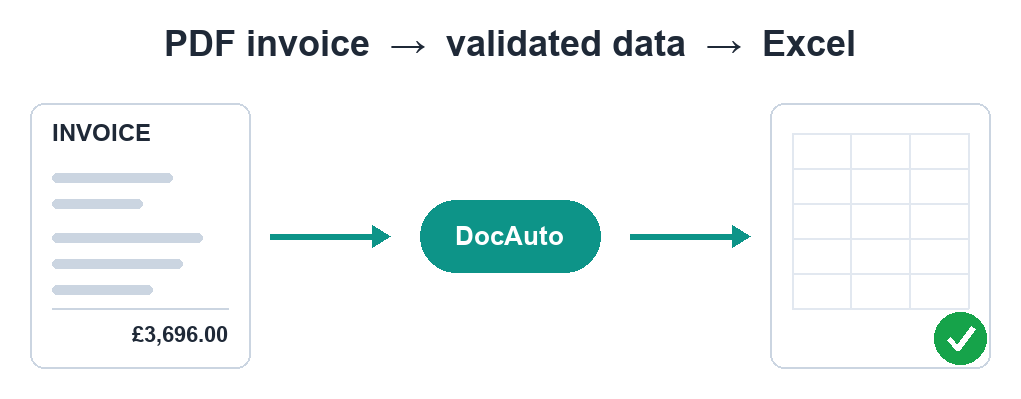
A one-off, single page, low stakes: run it through free OCR or ask ChatGPT, then eyeball the result. A digital PDF, not a scan: our free in-browser converter turns it into Excel on your device with no upload — but it needs real text, so it will not read a scan. Scanned files, mixed layouts, volume, or numbers you will post to the books: DocAuto reads the scan with AI vision, returns clean structured columns, validates that the totals reconcile, flags anything that doesn't, and delivers Excel or CSV — or pushes it straight into QuickBooks or Xero.
Skip the manual work
DocAuto turns your invoices, receipts and bills into clean, validated spreadsheet data — every figure checked before you get it.
Send a document — free sample